
MD Viewer OCR Translate Word Reminder Focus One Thing Web Clipper Highlight & Note Dual Subtitle FloatPiP FloatScroll







Web highlighter with notes

Mark it. Find it again.

Select text, right-click, Highlight. Come back to the link and it is still there, even if the page has changed.

example.com/article
Highlight & Note

Everything you need.

Nothing you don’t.

Your own types

Four colors: set the name, background, text color, bold and underline of each.

Notes

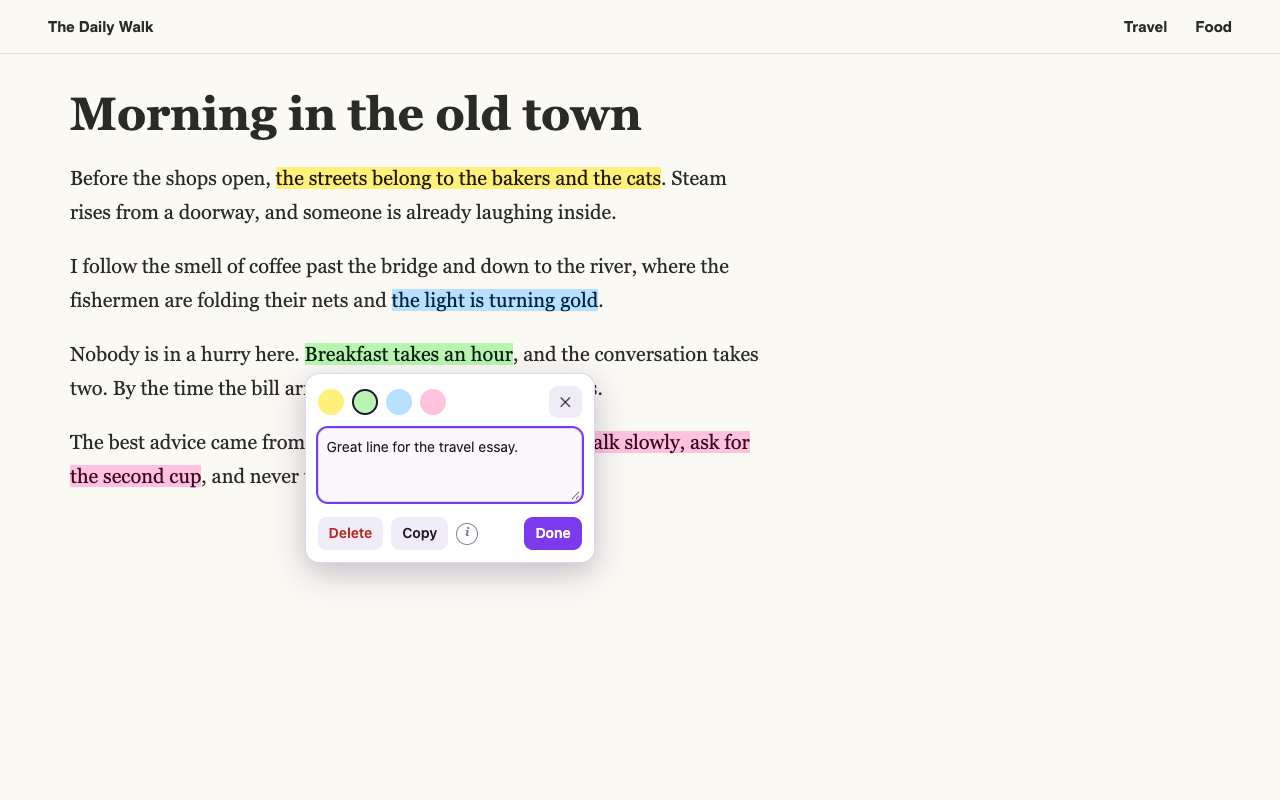
Click highlighted text to write.

Survives changes

Finds edited text; if it is gone, it stays in your list with the link.

See everything

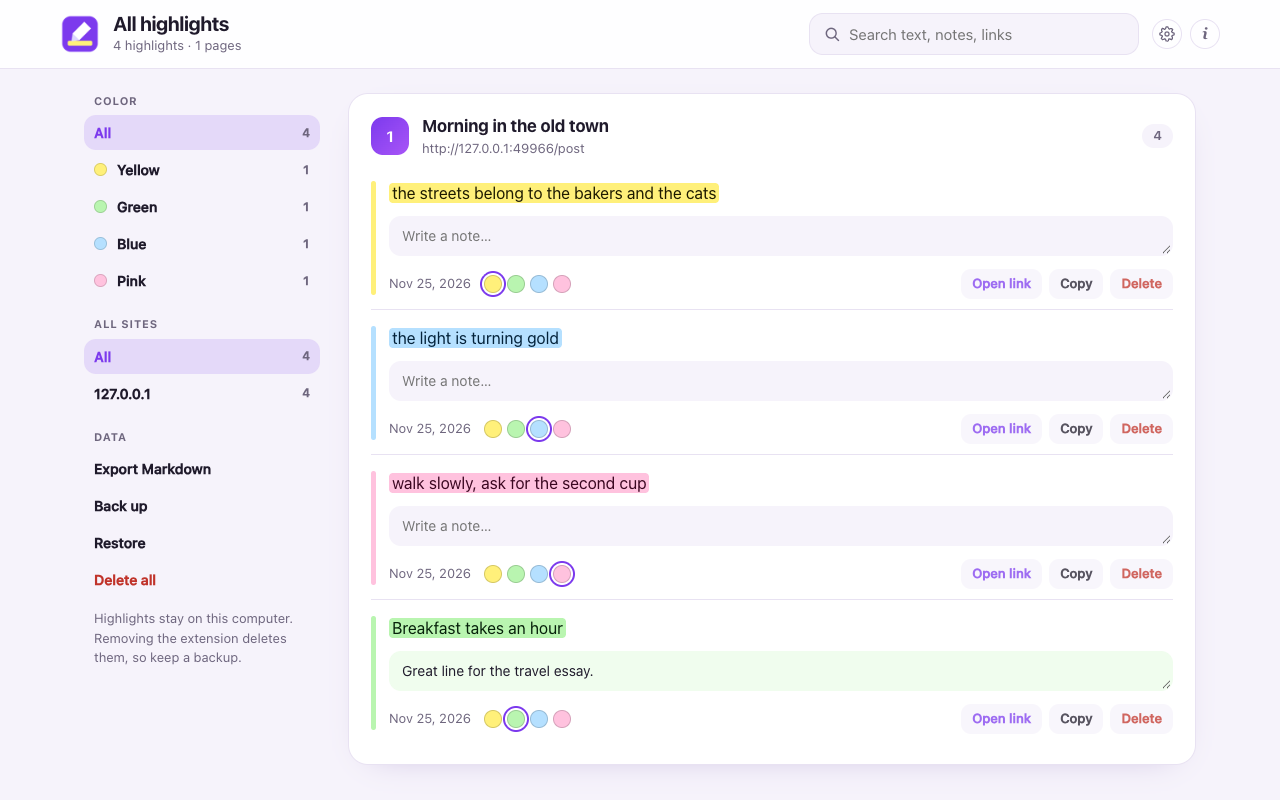
One list for all pages, with a tab for each color.

Export

Markdown, and JSON backup.

Private

Only on your computer, never in Incognito.

See everything

One list for all pages, with a tab for each color.

See everything

Get started in a minute.

A few short steps.

  1. 1

    Install Highlight & Note

    1. Open Highlight & Note on the Chrome Web Store.
    2. Click Add to Chrome.
    3. In the dialog, click Add extension.
    Add “Highlight & Note”?
    CancelAdd extension
  2. 2

    Pin it to the toolbar

    1. Click the puzzle-piece icon at the top-right of Chrome.
    2. Find Highlight & Note and click the pin.
    example.com
    Extensions
    Highlight & Note
  3. 3

    Select text on a page

  4. 4

    Right-click → Highlight → choose a color

  5. 5

    Click the highlight to add a note

    Click the highlight to add a note.
  6. 6

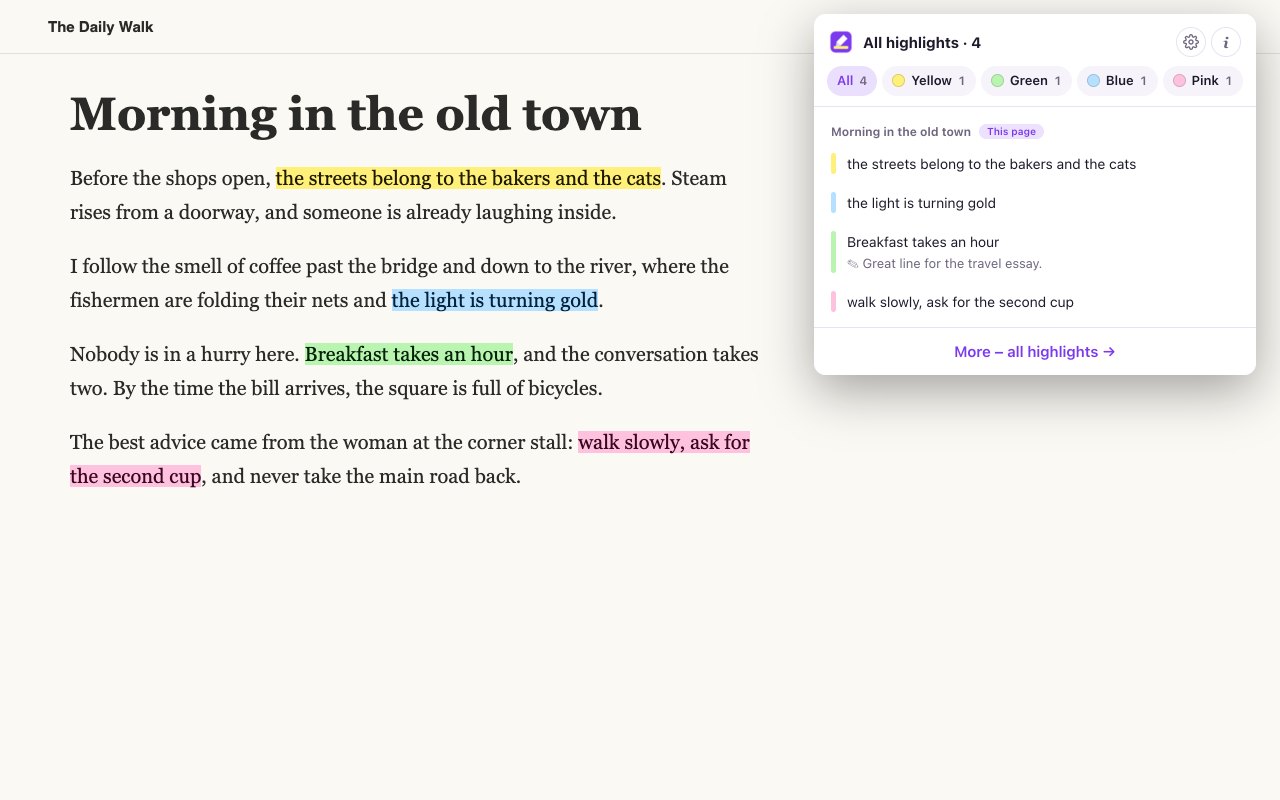
    Click the icon: pick a color tab, click an item to jump to it

    More opens all highlights.

    Click the icon: pick a color tab, click an item to jump to it.

Keyboard shortcuts.

Alt + Shift + H

Highlight the selected text

Esc

Finish the note

Questions? Answers.

Why is a highlight not visible?

The text is no longer on the page, or automatic display is not allowed. Open the popup to see it.

Does it work on PDF?

Not in this version.